

Teams
Overview
As organizations grow, managing data quality and access at an individual level quickly becomes a bottleneck. The Teams feature lets you mirror your company’s real-world structure—such as business units, squads, or departments—directly in the platform.
Teams make it easier to manage access, assign ownership, and ensure the right group handles incidents, not just one person.
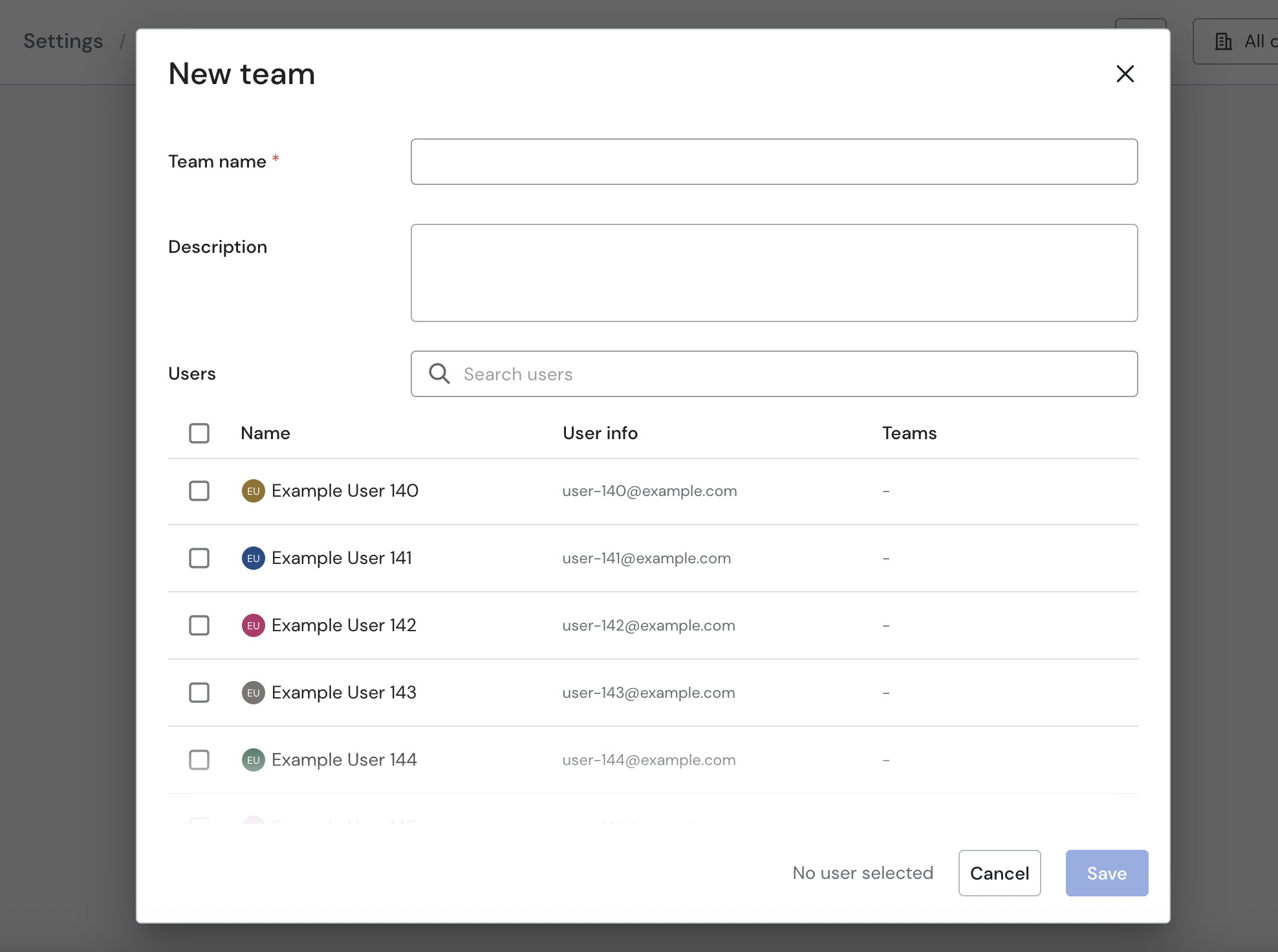
Step 1: Create a Team
- Navigate to Settings > Teams.
- Click Create Team.
- Enter a Team Name (e.g., Product Team) and an optional description.
- Add team members. (If a user already belongs to a team, the team appears in the Teams column.)
📝 Note: At this stage, you are only grouping users. You assign permissions and ownership in the next step.
Step 2: Assign Ownership & Permissions
Once you create a team, you can use it exactly like a user across the platform:
-
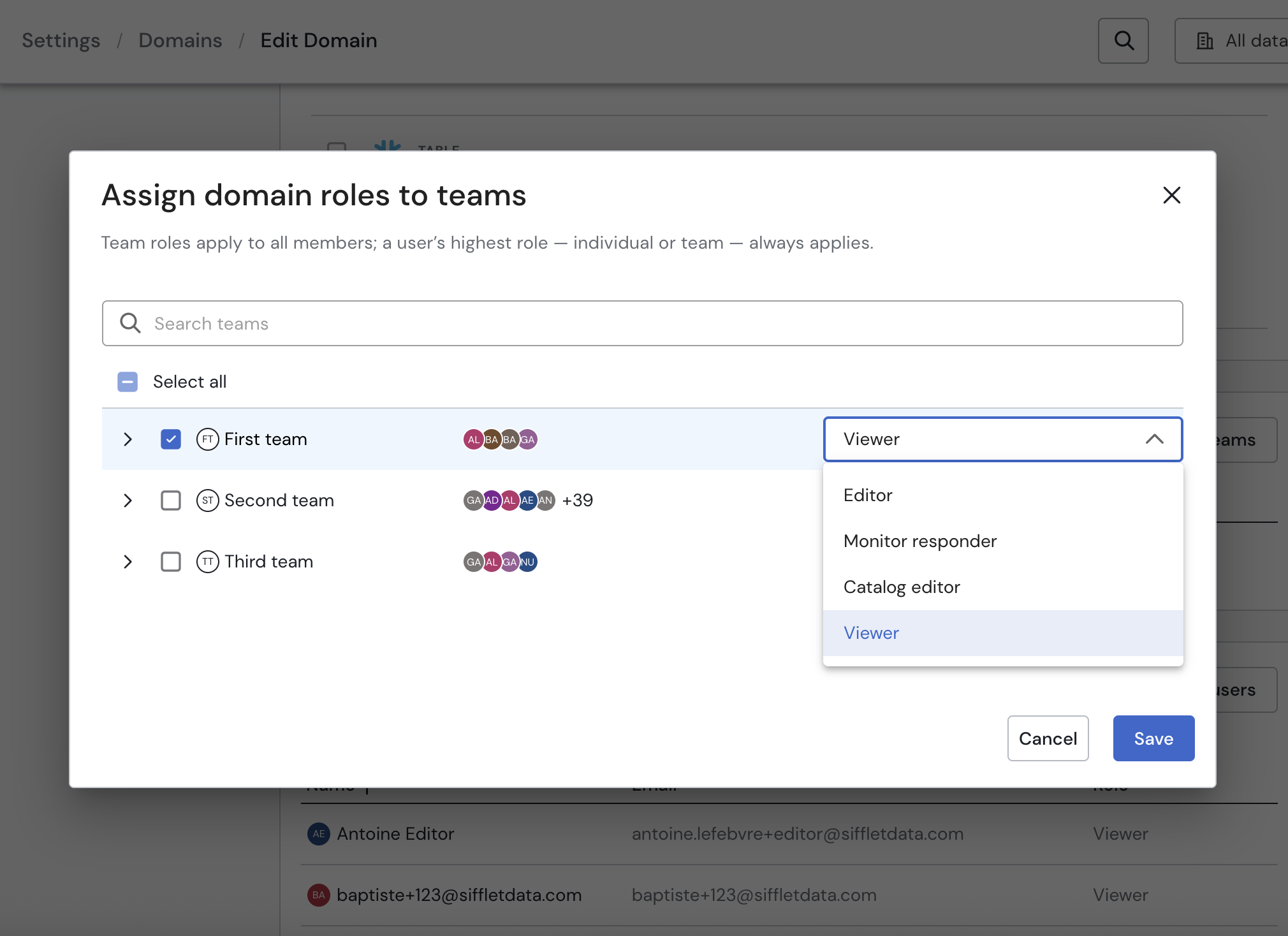
Domains & Subdomains
Go to a domain’s settings, click Add Team, and select a role (Domain Viewer, Domain Editor, etc.).
All team members immediately gain that access.
-
Assets: Assign a team as the Owner of an asset.
-
Incidents: Assign incidents to a team so everyone in that group can track and resolve them together.
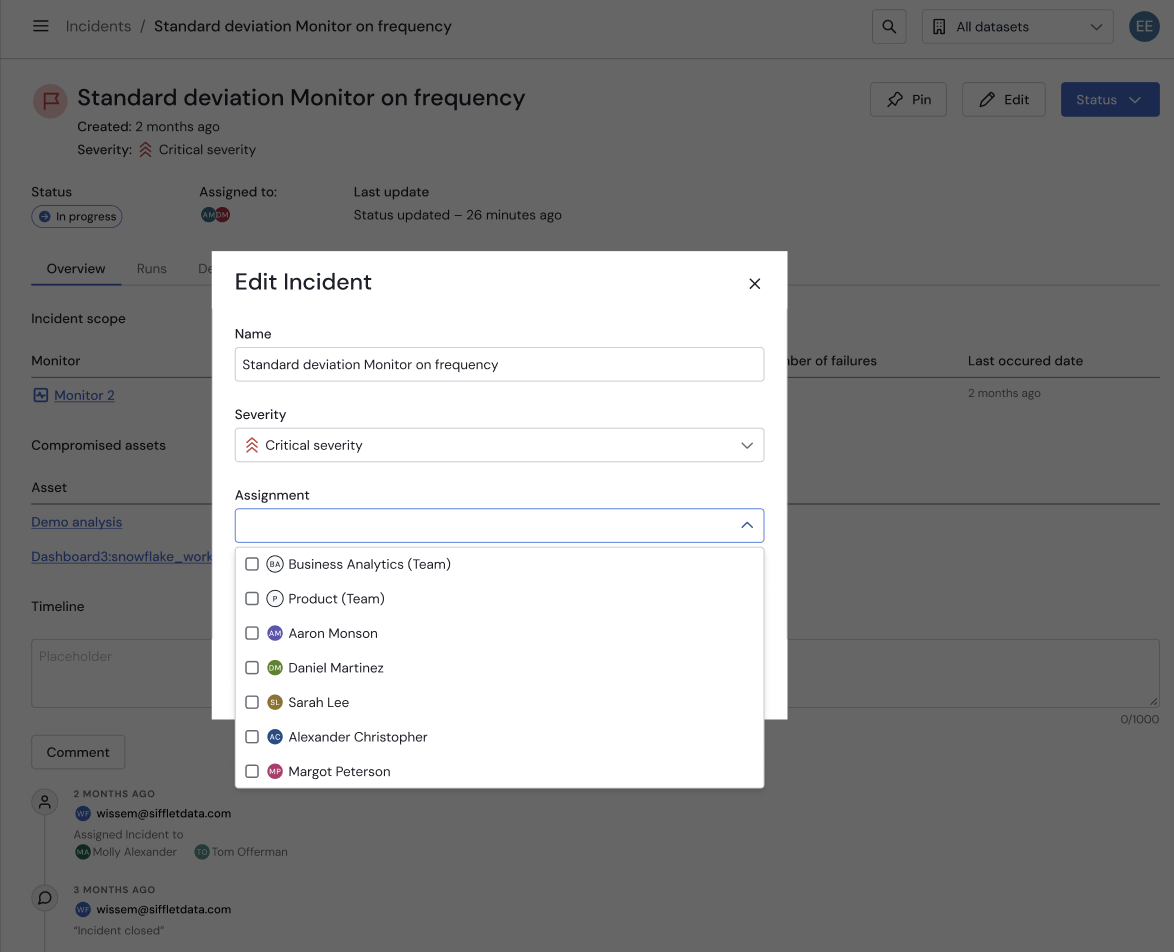
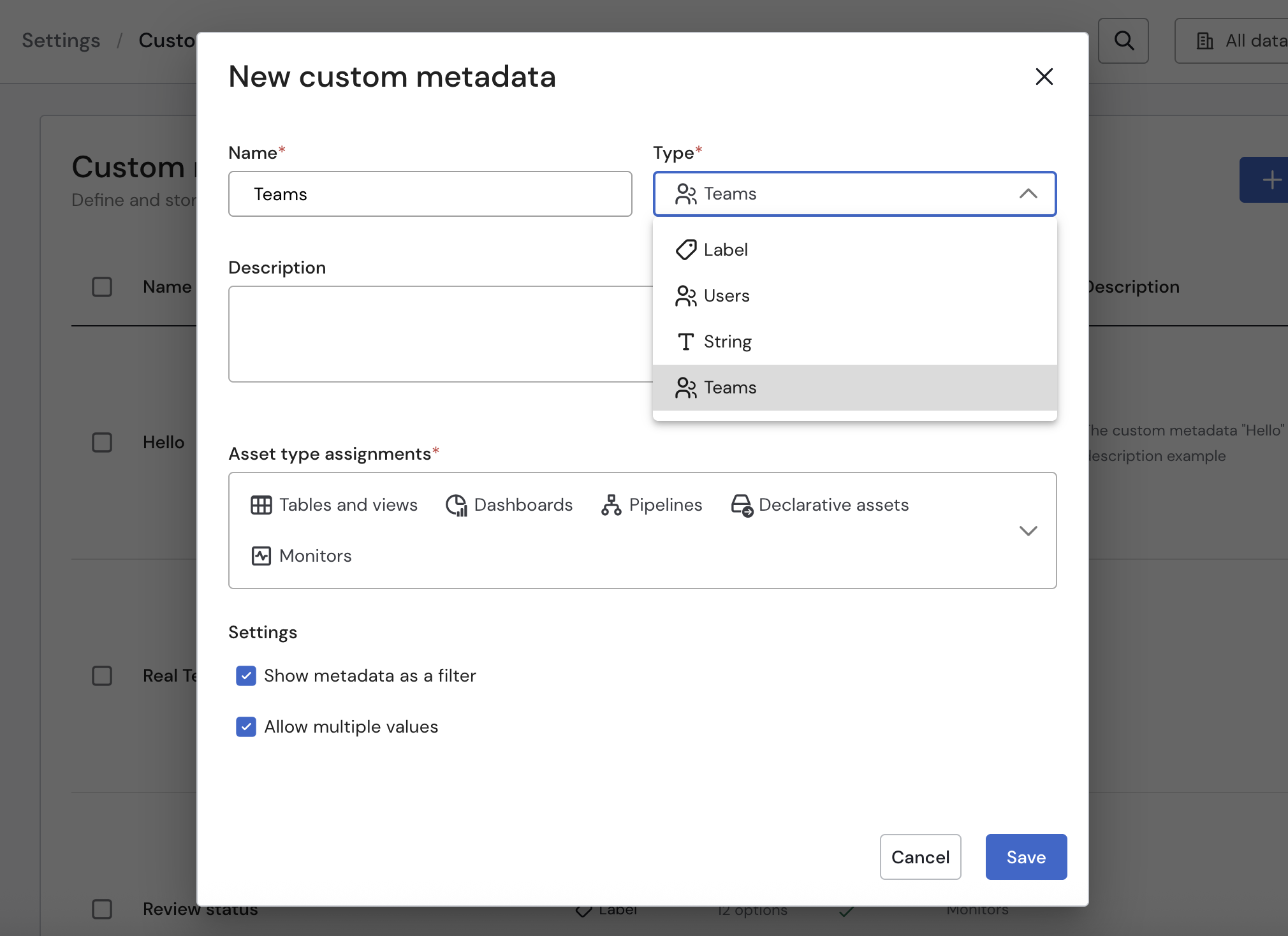
Note: To assign teams to assets or incidents, enable Teams as a custom metadata field.
Access Rules
-
Inheritance
If you are not assigned to a domain individually, you inherit the role assigned to your team.
-
Highest Role Always Applies
Sifflet applies domain roles assigned to a team to all team members.
A user’s effective role is always the highest role assigned, whether it comes from an individual assignment or from one or more team assignments.
Example: Role Resolution
Imagine User A belongs to two teams: Team A and Team B.
| Scenario | Team A Role | Team B Role | Individual Role | Effective Role |
|---|---|---|---|---|
| A | Editor | Viewer | None | Editor (highest team role) |
| B | Viewer | Editor | Viewer | Editor (team role is higher) |
| C | Viewer | Viewer | Editor | Editor (individual role is higher) |
Updated about 1 month ago