

Linking Airflow DAGs to Data Assets
Connecting your Airflow DAGs to the data assets they manage gives you end-to-end data observability. This link enriches your data lineage, providing a clear picture of how your assets are created and updated. It also accelerates incident resolution by immediately showing which pipelines might be responsible for a data quality issue.
This guide explains how to use query tags to automatically link your Airflow DAGs to assets in Sifflet.
Feature availabilityLinking DAGs to data assets is currently available for BigQuery and Snowflake (Enterprise Edition). You can reach out to your Sifflet customer success team regarding supporting other data platforms.
How It Works
During source refreshes, Sifflet scans the query history from your sources (like Snowflake or BigQuery). When a query modifies an asset (e.g., via CREATE TABLE, INSERT, MERGE), Sifflet inspects the query's metadata for a specific tag.
If a query's metadata contains the key airflow_dag_id with your DAG ID as value, Sifflet automatically creates a relationship between the asset being modified and the specified Airflow DAG in the Sifflet catalog.
How to Link Your DAGs
Follow these steps to configure your Airflow DAGs to send the necessary metadata to Sifflet.
1. Identify the Target DAG and Queries
First, identify which queries within your DAG are responsible for creating or updating the data assets you want to link. This is typically any SQL statement that modifies a table, such as an INSERT, UPDATE, MERGE, or CREATE TABLE AS SELECT (CTAS).
Supported Snowflake query typesOn Snowflake, only
INSERT,MERGE, andCREATE TABLE AS SELECTqueries link a DAG to the table they modify.UPDATE,DELETE, andCOPY INTOqueries are ignored.
2. Add the Sifflet Query Tag
For each of those queries, add the airflow_dag_id key to the query metadata, with your DAG ID as value. The format depends on your data platform:
| Data platform | Where to set it | Format |
|---|---|---|
| Snowflake | QUERY_TAG session parameter | {"airflow_dag_id": "<DAG_ID>"} (JSON) |
| BigQuery | Job labels | airflow_dag_id label set to <DAG_ID> |
<DAG_ID> must be an exact match for the dag_id of your DAG in Airflow.
Snowflake query tag formatWe recommend the JSON format, because it lets you add other keys to the same query tag, for example
{"airflow_dag_id": "<DAG_ID>", "team": "finance"}.Sifflet also accepts the plain format
airflow_dag_id:<DAG_ID>, but only when it is the whole query tag. A tag such asteam:finance airflow_dag_id:<DAG_ID>isn't recognized.
Most Airflow operators that execute SQL have a parameter for setting query metadata, as shown in the examples below.
Example 1: SnowflakeOperator
If you're using Airflow's SnowflakeOperator, you can pass the tag via the session_parameters argument. This injects a SET command before your main SQL runs.
from airflow.providers.snowflake.operators.snowflake import SnowflakeOperator
from airflow.models.dag import DAG
import datetime

with DAG(
    dag_id='daily_sales_aggregation',
    start_date=datetime.datetime(2025, 1, 1),
    schedule_interval='@daily',
    catchup=False,
) as dag:
    aggregate_sales_data = SnowflakeOperator(
        task_id='run_daily_aggregation',
        sql='sql/aggregate_sales.sql',
        snowflake_conn_id='your_snowflake_conn',

        # 👇 This is where you add the Sifflet tag!
        session_parameters={
            "QUERY_TAG": '{"airflow_dag_id": "daily_sales_aggregation"}'
        }
    )
Example 2: BigQueryInsertJobOperator
If you're using Airflow's BigQueryInsertJobOperator, you can pass the tag via the labels argument.
from datetime import datetime
from airflow import DAG
from airflow.providers.google.cloud.operators.bigquery import BigQueryInsertJobOperator

with DAG(
    dag_id="bigquery_transform",
    start_date=datetime(2024, 1, 1),
    schedule="@daily",   # set to None for on-demand
    catchup=False,
) as dag:

    transform = BigQueryInsertJobOperator(
        task_id="transform",
        configuration={
            "query": {
                "query": TRANSFORM_SQL,
                "useLegacySql": False,
            },
            "labels": {
                "airflow_dag_id": "bigquery_transform"
            },
        },
        gcp_conn_id=BIGQUERY_CONN_ID,
        project_id=PROJECT_ID,
    )
3. Run the DAG
Trigger your DAG in Airflow. Once the tagged query successfully executes against your data warehouse, Sifflet will process it during its next scan of the query history.
4. Verify the Link in Sifflet
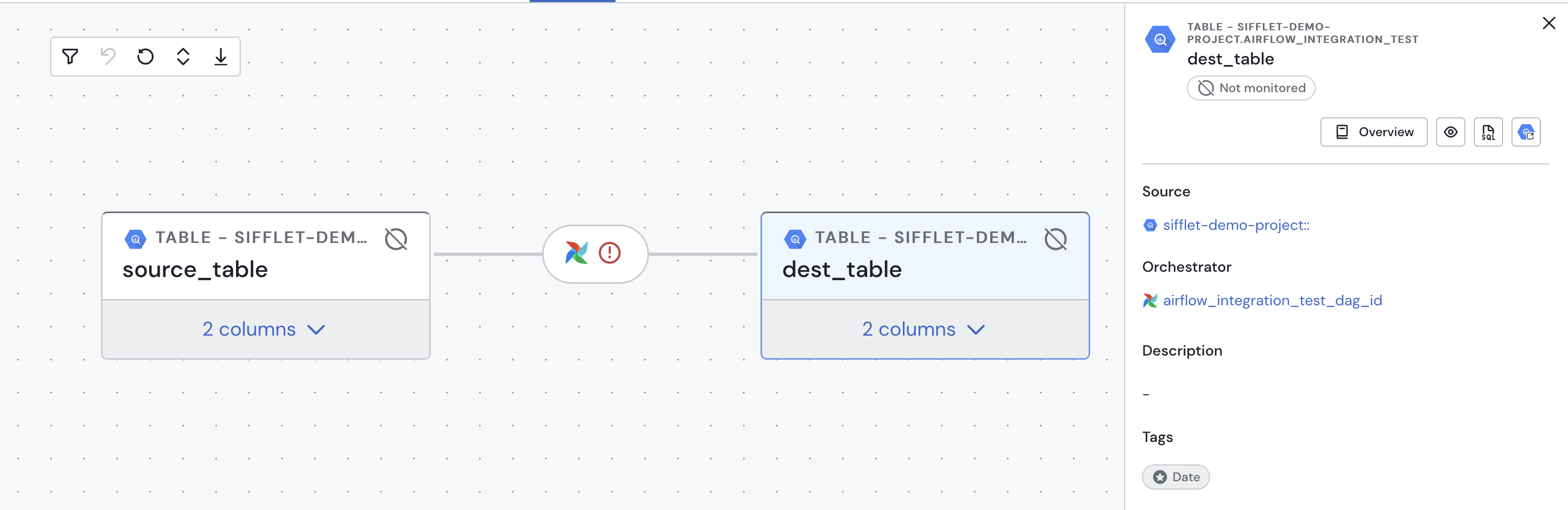
After both sources (Airflow and your data platform) are refreshed, you can verify the connection in the Sifflet UI:
-
Asset Page: Navigate to the asset that your query updated (e.g., the
daily_sales_summarytable). You'll find a new field called "Orchestrator" in the overview panel linking to thedaily_sales_aggregationDAG. -
Lineage: Open the lineage graph for the asset. You will now see the Airflow DAG appearing as upstream of your asset node, clearly showing that it generates or updates this asset.
Troubleshooting and Best Practices
- Exact Match Required: Ensure the
<DAG_ID>in the tag is identical to your Airflowdag_id. Typos are the most common reason for links not appearing. - Snowflake Query Tag Format: Check the
QUERY_TAGcolumn ofSNOWFLAKE.ACCOUNT_USAGE.QUERY_HISTORYfor your queries. It must be either a valid JSON object containing theairflow_dag_idkey, or exactlyairflow_dag_id:<DAG_ID>. - DAG Not Appearing?: If the link doesn't show up, check the following:
- Has the DAG run at least once after you added the tag?
- Did the task containing the tagged query run successfully?
- Was Sifflet able to ingest the latest query history from your data platform source?
- Dynamic Task IDs: If you're using dynamically generated DAGs or tasks, make sure your code correctly passes the parent
dag_idinto the query tag. - Permissions: The service account Sifflet uses to connect to your data platform must have sufficient permissions to read the query or job history.
Updated 8 days ago