

Atlan
Sifflet connects to Atlan to reuse the business context you maintain there (descriptions, glossary terms, tags, owners, and custom metadata) on the tables and views it already monitors. This context shows which assets matter to the business and who owns them, so you can decide where to add monitors and assess the business impact of an incident. You find Atlan metadata on asset pages and as Data Catalog filters, with a link to open each asset in Atlan. The integration is read-only: Sifflet imports metadata from Atlan and never writes back to it. For the full list of imported metadata, see Atlan Collected Data.
Permissions Required
Sifflet reads Atlan metadata through the Atlan API, with an Atlan OAuth client (client ID and client secret). Sifflet only reads metadata: it never creates or updates anything in Atlan.
| Atlan object | Used for | Required |
|---|---|---|
| Connections | List the Atlan connections to map to Sifflet sources | Yes |
| Tables and views of the mapped connections, with their descriptions, glossary terms, Atlan tags, owners, and custom metadata | Import metadata onto the matching Sifflet assets | Yes |
| Glossary terms | Display the names of the terms assigned to assets | Yes |
| Custom metadata definitions | List the custom metadata you can import | Yes |
The OAuth client needs read access to all these objects. In Atlan, access for an OAuth client is controlled by the personas it is linked to: see the Atlan documentation on OAuth clients.
Requirements
Required Roles for Setup
- In Atlan: the Admin role, to create an OAuth client and link it to personas.
- In Sifflet: a role that can create credentials in Integrations > Credentials and sources in Integrations > Sources.
Supported Versions and Editions
Sifflet supports Atlan SaaS tenants (https://<YOUR_COMPANY>.atlan.com).
Sifflet maps Atlan metadata to assets of the following Sifflet source types only:
- Amazon Athena
- Google BigQuery
- Oracle
- PostgreSQL
- Snowflake
If you use Atlan with other technologies, contact Sifflet support.
Network Access
Atlan is a SaaS service: Sifflet connects to it over the internet.
Other Prerequisites
Sifflet doesn't create assets from Atlan: it adds Atlan metadata to the assets it already imports from your data platforms. Before you configure Atlan, add a Sifflet source for each data platform whose Atlan metadata you want to import, with one of the supported source types listed above.
Connect Sifflet to Atlan
Step 1: Create an OAuth Client in Atlan
- In Atlan, create an OAuth client. See the Atlan documentation on OAuth clients.
- Link the OAuth client to a persona that grants read access to the connections whose metadata you want to import, to your glossaries, and to custom metadata.
- Copy the client ID and client secret.
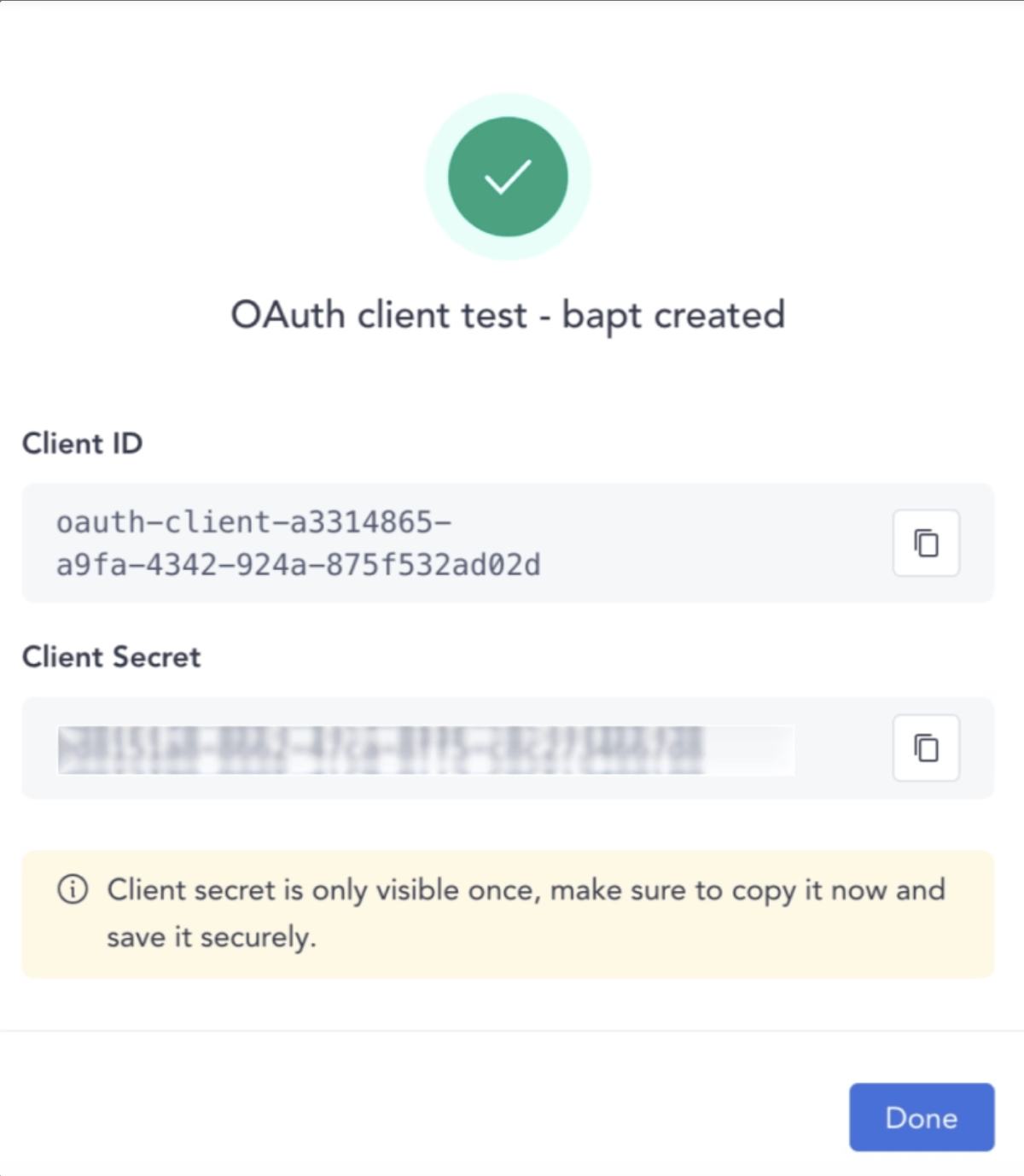
Keep the client ID and client secret for step 2.
Step 2: Add the Atlan Source in Sifflet
-
Go to Integrations > Credentials and create a credential with the client ID and client secret of the OAuth client, in the following format:
{
  "client_id": "<ATLAN_CLIENT_ID>",
  "client_secret": "<ATLAN_CLIENT_SECRET>"
}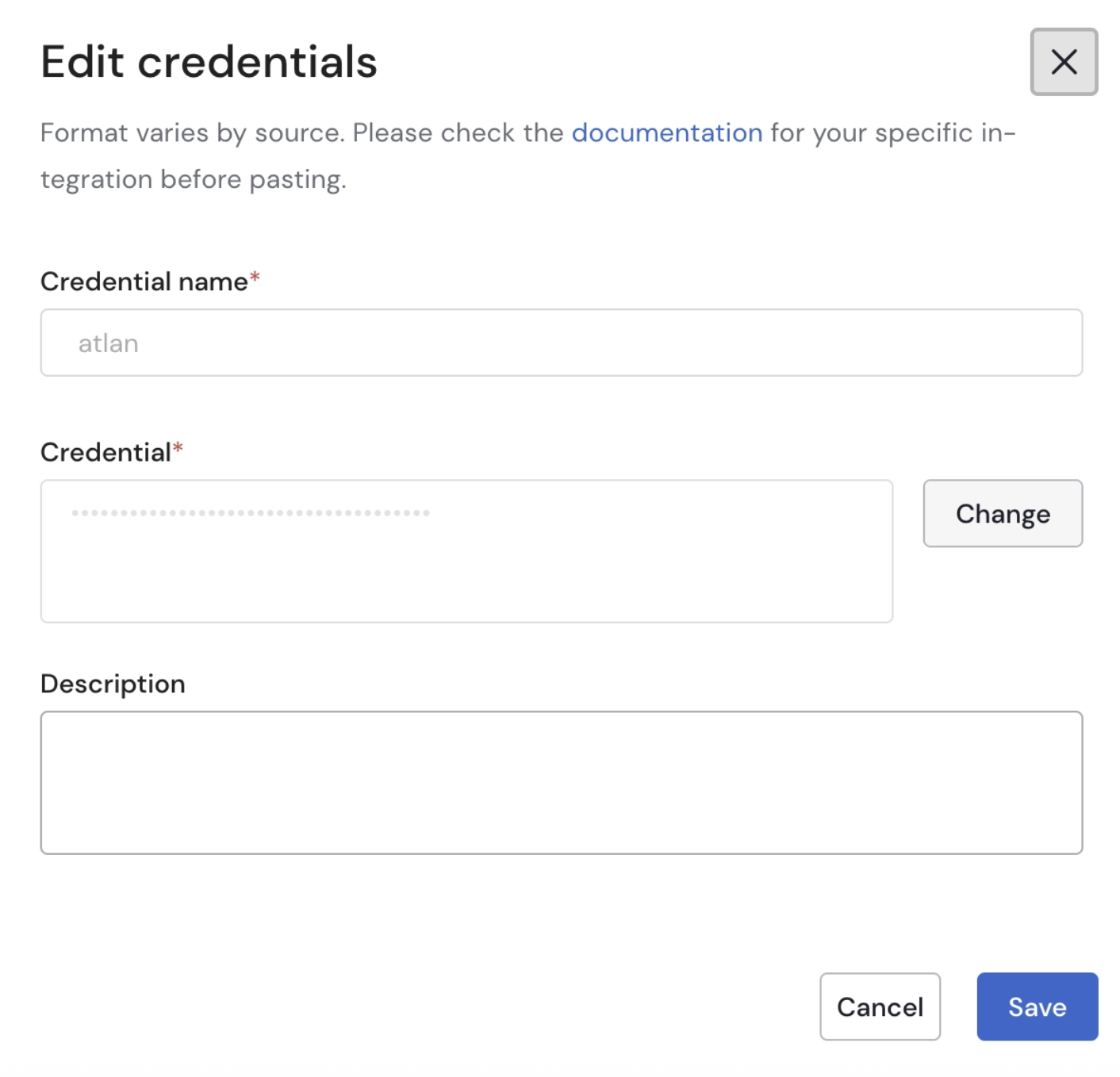
Create credential UI
-
Go to Integrations > Sources, click New source, and select Atlan.
-
Fill in the source fields:
Field Description Example Source name The name of the source in Sifflet AtlanAtlan tenant URL The URL of your Atlan tenant, with https://and without any pathhttps://your-company.atlan.comCredentials The credential created above atlan-oauth-client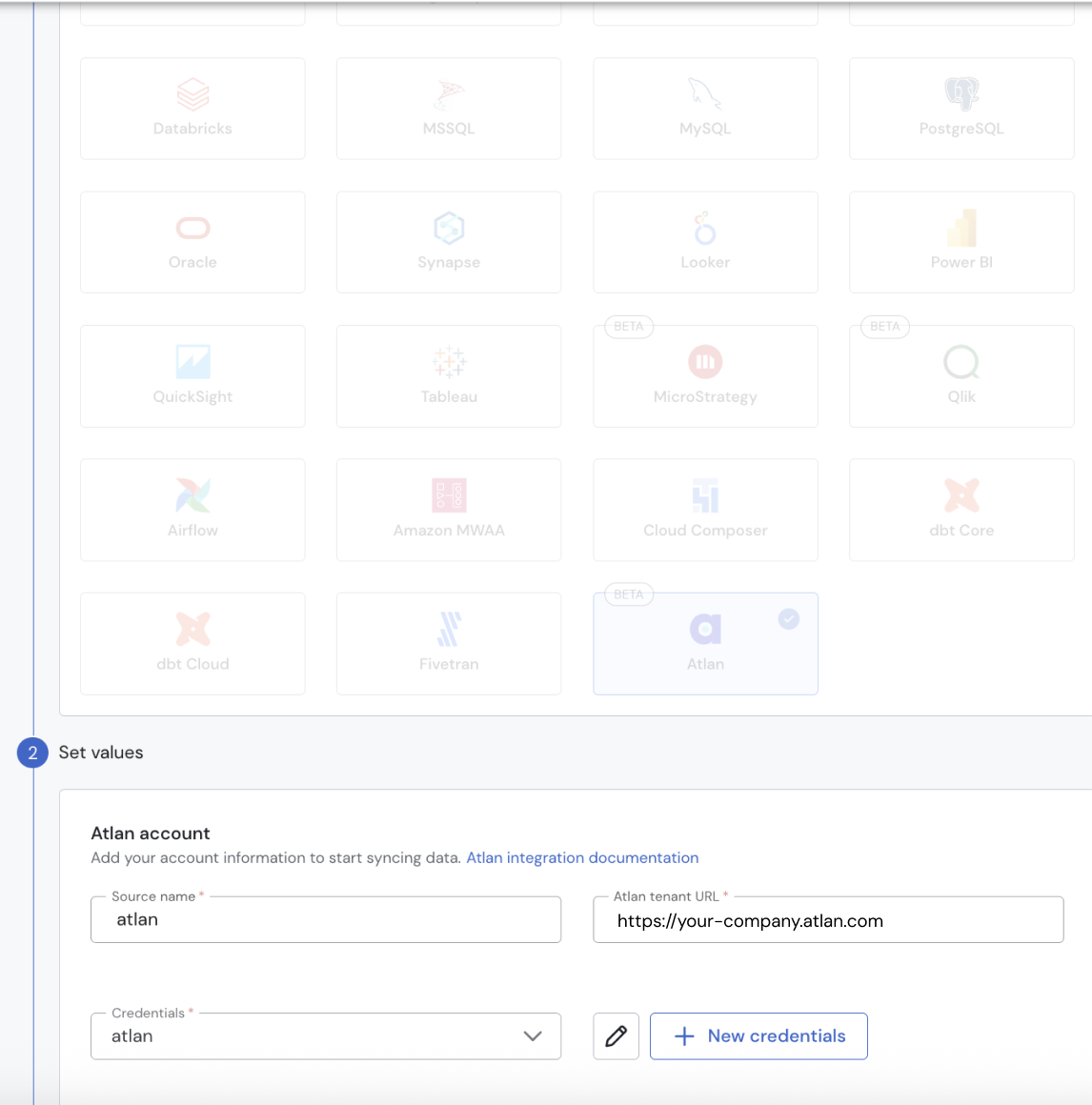
Final settings
-
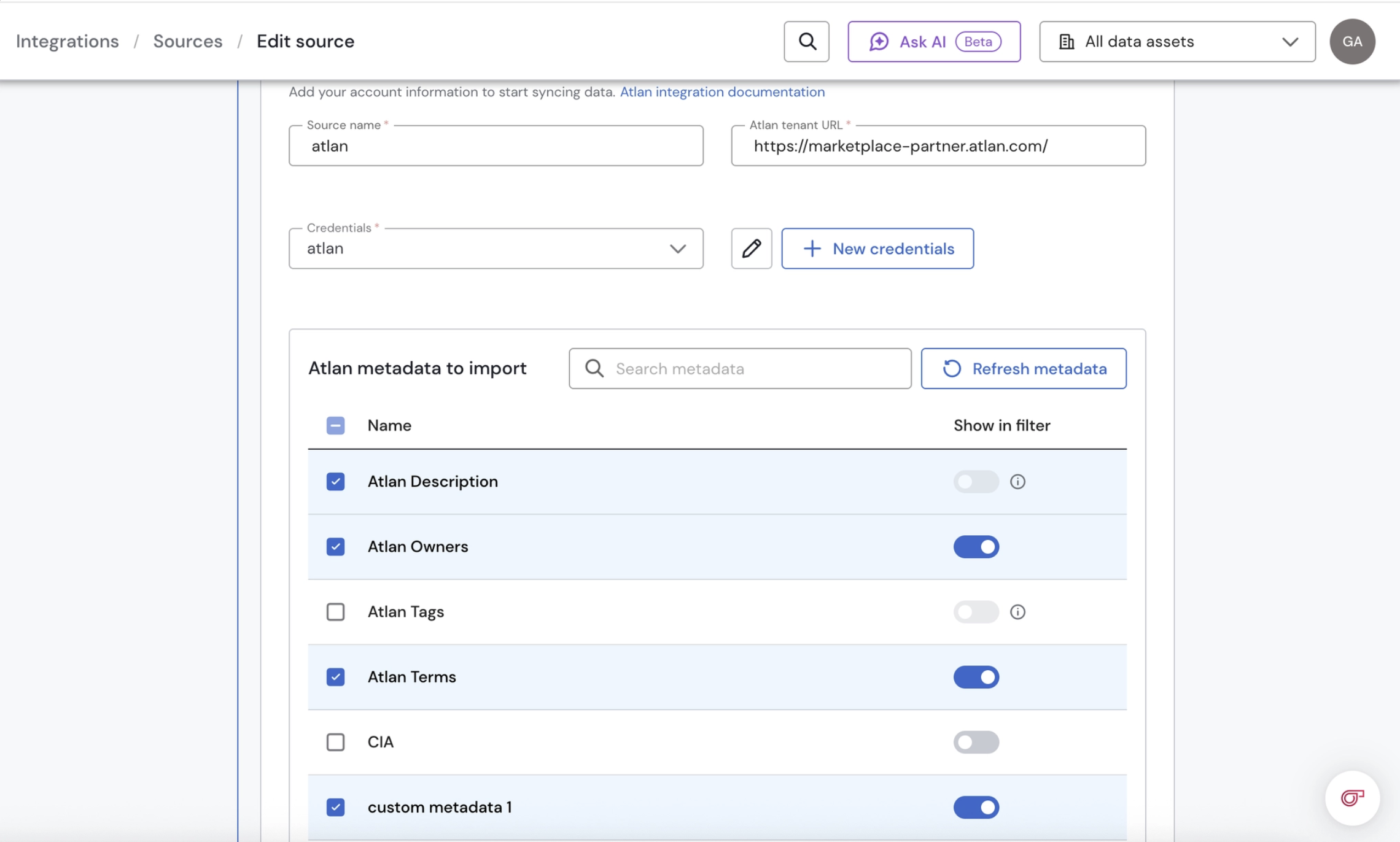
Select the metadata to import:
- Click Load metadata. Sifflet lists the metadata available in Atlan: descriptions, terms, tags, owners, and your custom metadata.
- Select the metadata to import into Sifflet.
- Enable Show in filter for the metadata you want to use as Data Catalog filters. Descriptions and tags can't be used as separate filters: Atlan tags are added to the Sifflet Tags filter.
-
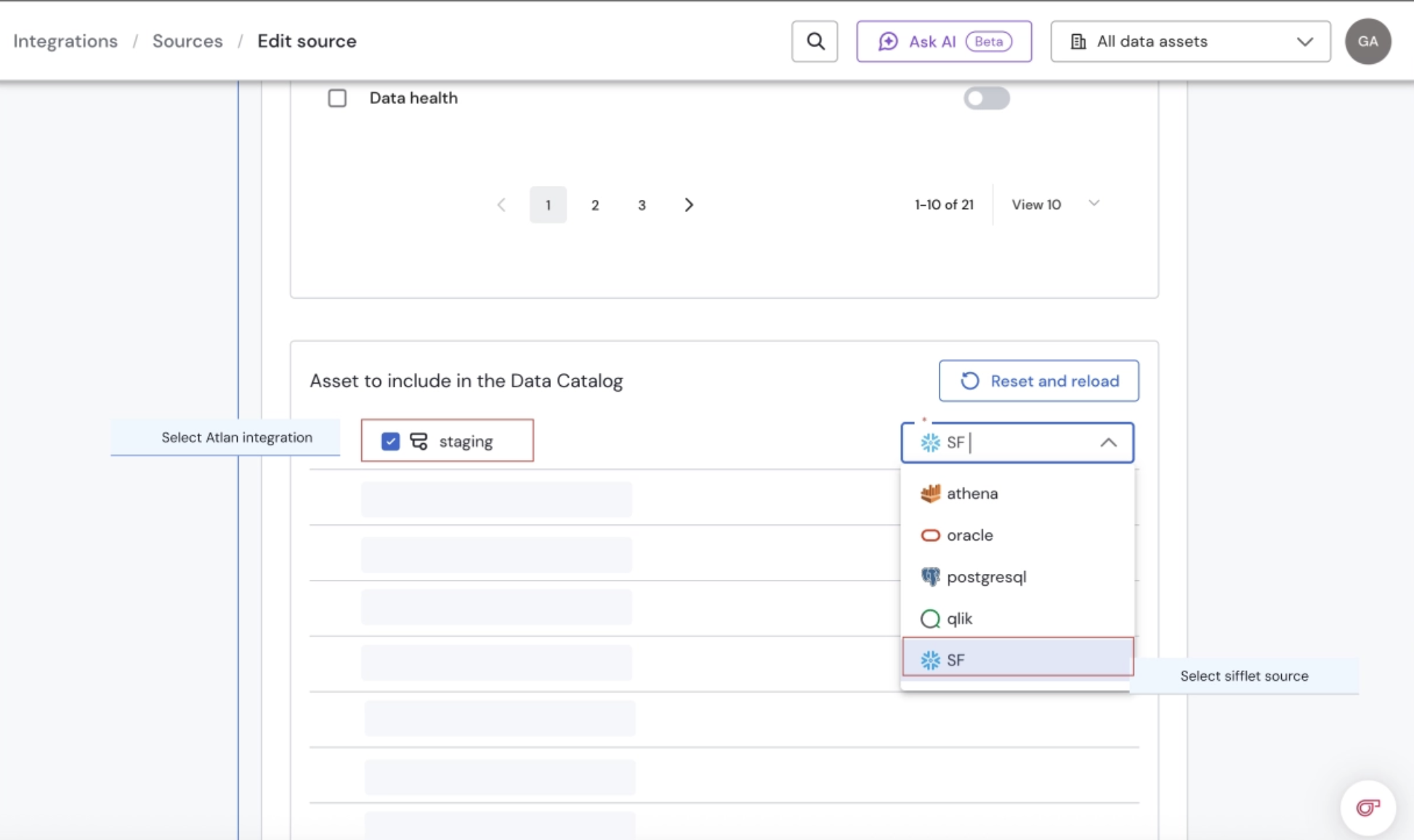
Map Atlan connections to Sifflet sources. This step is required: Sifflet uses the mapping to find, for each Atlan table or view, the matching Sifflet asset.
- Click Load assets. Sifflet lists the Atlan connections that the OAuth client can access.
- Select the Atlan connections to import.
- For each selected connection, select the matching Sifflet source in Sifflet Source match. Only sources of the supported types appear in the list.
-
Click Test Connection to check that Sifflet can access Atlan, then save the source.
Saving the source starts a first run. You can follow its status and logs in the source details: for Atlan sources, the run name shown in Sifflet is the Atlan integration ID, not the Sifflet source name. Atlan metadata appears on asset pages and in Data Catalog filters when the run completes. For refresh frequency, scheduling, and other source operations, see Integrations Management.
To change the imported metadata or the filters later, edit the source, update the selection, save, and run the source again: the changes appear after the run completes.
Troubleshooting
Invalid Credentials
Symptom: Test Connection fails with:
Invalid credentials provided. Please ensure they are properly formatted.Cause: the credential isn't valid JSON, or doesn't use the client_id and client_secret keys.
Fix:
- In Integrations > Credentials, edit the credential so that it matches the format of step 2.
- Click Test Connection again.
Sifflet Can't Connect to Atlan
Symptom: Test Connection or a run fails with:
Unable to connect to Atlan instance. Please verify the connection information.or:
Error communicating with Atlan, reason = <REASON>Cause: the Atlan tenant URL is wrong, the client ID or client secret is wrong or revoked, or the OAuth client doesn't have read access to the objects listed in Permissions Required.
Fix:
- Check the Atlan tenant URL field of the source.
- Check that the OAuth client still exists in Atlan, and that the credential uses its current client ID and client secret.
- Check the personas linked to the OAuth client, as described in step 1.
- Click Test Connection again.
Updated 15 days ago