

Overview dashboardᴮᴱᵀᴬ
Sifflet is rolling out the Overview Dashboard progressively, so it may not be enabled on your account yet. To request access, contact your Customer Success Manager.
Overview
The Overview Dashboard gives you a high-level view of your data health, monitoring performance, and incident health.
Use it to quickly understand:
- Is my data healthy?
- Is my data sufficiently monitored?
- Is my monitoring performing reliably?
- Are incidents under control?
- Is the situation improving or getting worse?
The Overview Dashboard focuses on overall health and trends. Use the Operations Dashboard to investigate individual problems and take action.
How Filtering Works
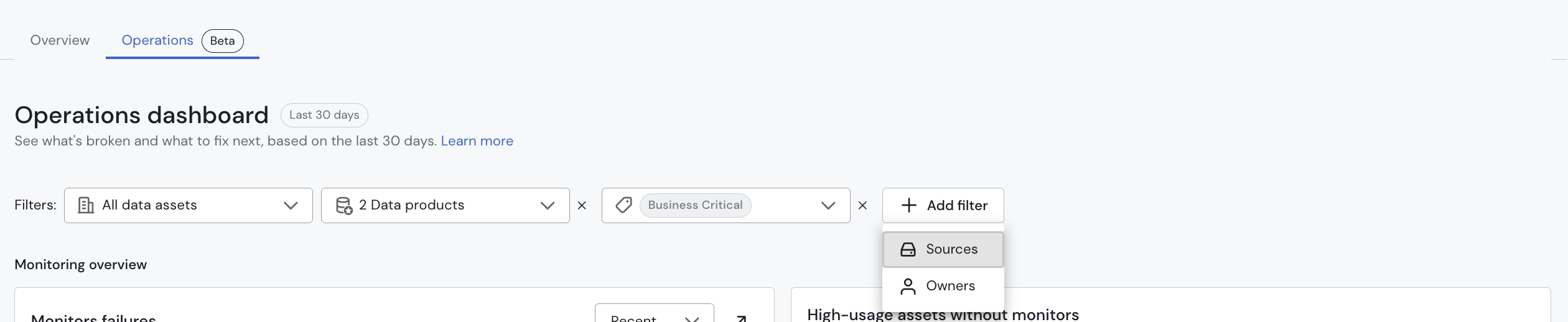
All dashboard filters are asset-based: they apply to assets, not to monitors. Dashboards can be filtered by Domain, Data Product, Data Source, Tags, and Owner.
Filters can be combined to refine the view. You can select one domain at a time, and multiple tags and data sources. For example, selecting a domain together with a tag and a data source shows only the assets that match all three.
Pinned
The Pinned section of the Dashboard contains all the Sifflet objects you decided to pin when navigating the Sifflet application. This bookmarking mechanism allows you to save time by quickly accessing objects you regularly need directly on your Sifflet homepage, without having to search for them.

Objects are pinned on a per user basis, which means that objects you pin will only be pinned for you and not for other members of your Sifflet account.
- Recent: The
Recenttab shows all your pinned objects, regardless of their object type. - Data: The
Datatab shows all your pinned data assets. - Monitors: The
Monitorstab shows all your pinned monitors. - Incidents : The
Incidentstab shows all your pinned incidents.
Pin/Unpin an Object
To pin or unpin an object, go to the object page and click the Pin/Unpin button. The following objects can be pinned:
- Asset
- Monitor
- Incident

Good to know
Reading the dashboard
- Time range. Most widgets have their own range, such as 7, 14, 30 or 90 days, shown as a small badge on the widget.
- Comparison badges. Widgets that show a badge such as ▼ 10 compare the current period with the previous period of the same length.
- Only monitorable assets are counted. Total assets and Coverage only include assets that can be monitored. Declarative assets and Snowflake streams are not included, so the total can be lower than the asset count in the Data Catalog.
How dashboard data is updated
The dashboard shows snapshot data, not live data. Numbers reflect the last update, so they can differ from the live status on the Monitors or Incident page. How often they update depends on the widget:
- Widgets without a time range badge show the latest state of your monitors (for example, how many are failing). Changes can take up to 4 hour to appear.
- Widgets with a time range badge show results over the selected period (for example, the last 30 days). They are based on a daily snapshot taken once a day, at 7:00 AM UTC. Changes made shortly before that time may only appear in the next day’s snapshot.
The data catalog snapshot at the top of the page shows how many sources, tables and views, pipelines and dashboards you have today. The number of sources matches the integrations listed on your Integrations page, and only counts integrations that have assets.

1. Data Health
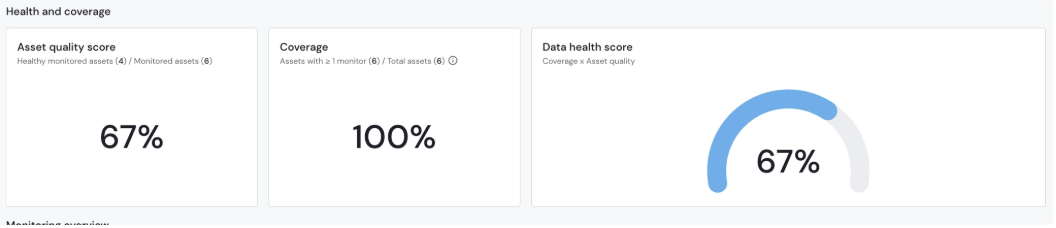
The Data Health Score combines Asset Quality and Coverage to show how much of your data is both monitored and healthy. It includes:
The three metrics
| Metric | Question it answers | How it’s calculated |
|---|---|---|
| Coverage | How much of your data are you monitoring? | Assets with ≥1 monitor / Total assets |
| Asset Quality | Of the assets you monitor, how many are healthy? | Monitored assets with no issues / Assets with ≥1 monitor |
| Data Health Score | Out of all your assets, how many are verified as healthy? | Coverage × Asset Quality |
Example
- You have 200 assets in total
- You monitor 100 of them → Coverage = 100 / 200 = 50%
- 80 of those monitored assets have no issues → Asset Quality = 80 / 100 = 80%
- Data Health Score = 50% × 80% = 40%
In other words: 80 of your 200 assets are verified as healthy.
How to read a low score
⚠️ A low Data Health Score usually means low coverage, not bad data.
Always look at the two metrics together:
| If this is low… | It means… | What to do |
|---|---|---|
| Coverage | Most of your data isn’t monitored yet | Add monitors, starting with your most critical assets |
| Asset Quality | Monitored assets have open issues | Investigate and resolve open incidents |
For example, an Asset Quality of 96% with a Coverage of 4% gives a Data Health Score of 4%. The data you monitor is in great shape. You just need to monitor more of it.
Focus on the assets that matter
Tip: Use tags to filter the dashboard to your critical assets (for example, a “Critical” or “Finance” tag). This gives you a coverage and health score based on the data your team actually needs to monitor.
Note: which assets count toward coverage
Currently, all assets are included when calculating coverage. Some assets may never need a monitor, such as:
- Static tables that don’t change
- Views that only reformat or clean their underlying tables (monitoring the source table is enough)
These assets lower your coverage even though leaving them unmonitored is intentional.
What you can do today: filter the dashboard by tags to focus on the assets you plan to monitor.
2. Monitor Health
Monitor Health shows how reliably your monitoring is running and how monitoring is distributed across your environment.
2.1 Monitor Overview
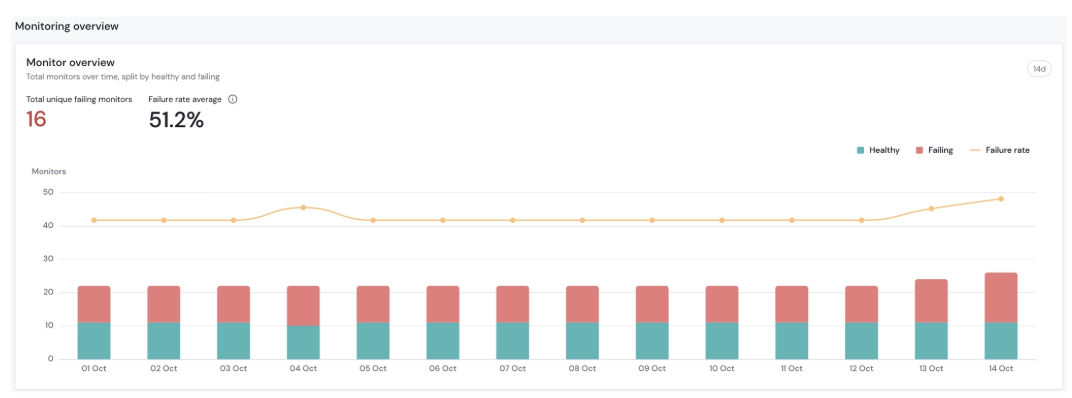
Monitor Overview shows two headline numbers for the selected period:
- Total Unique Failing Monitors: how many unique monitors failed at least once during the selected period.
- Failure Rate: the average daily failure rate over the period the selected period.
How it is calculated

Example

How it helps
Failure Rate helps you identify whether monitor failures are isolated or becoming a broader issue.
A lower failure rate is better, as it indicates that fewer monitors are failing. Tracking this metric over time helps you spot spikes, identify potential issues, and understand whether monitor reliability is improving or deteriorating.
2.2 Table Uptime
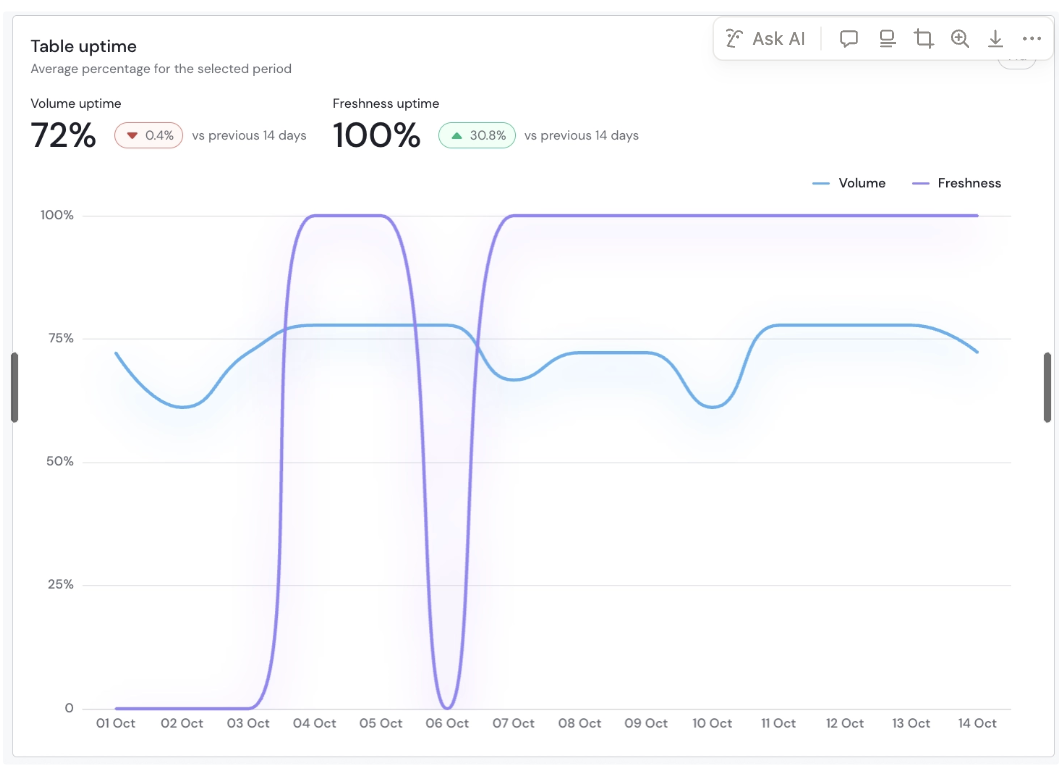
Table Uptime shows the percentage of monitored tables that experienced no failures during the selected period. It measures how many tables remained reliable among those that were actually monitored. The value is the average uptime over the selected time range.
How it is calculated

Example

How it helps
A higher uptime percentage is better, meaning more tables experienced no failures during the selected period. Tracking volume and freshness uptime helps you identify reliability issues and see whether data availability and freshness are improving or deteriorating.
2.3 Monitor Type Distribution
Monitor Type Distribution shows how your monitors are distributed across monitor types.

How it helps
This gives you a quick view of what you are monitoring and where your monitoring strategy is concentrated. For example, a small proportion of Quality monitors may highlight an opportunity to expand quality monitoring.
Freshness and Volume make up 82.5% of the setup, so pipeline problems are well covered. But with only 20 Quality monitors, data that arrives on time and in the right volume can still be wrong (nulls in a key field, duplicated IDs) and nothing would flag it.
2.4 Source Coverage
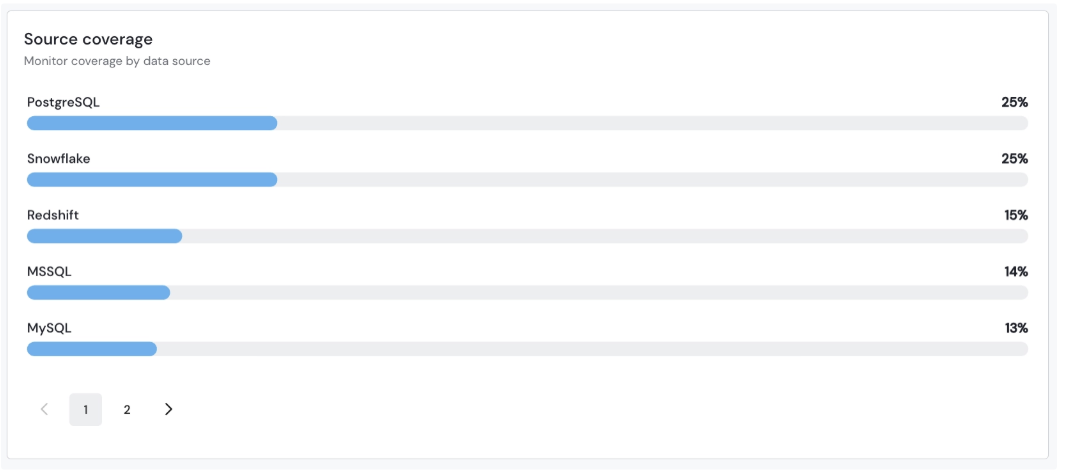
Source Coverage shows the percentage of assets monitored within each data source.
How it is calculated
Source Coverage = Monitored assets in the source / Total assets in the source
How it helps
Overall coverage can hide important gaps. For example, your overall coverage may look healthy while a critical source has very low coverage. Source Coverage helps you identify these gaps and prioritize where monitoring may need to be expanded.
2.5 Coverage Gap
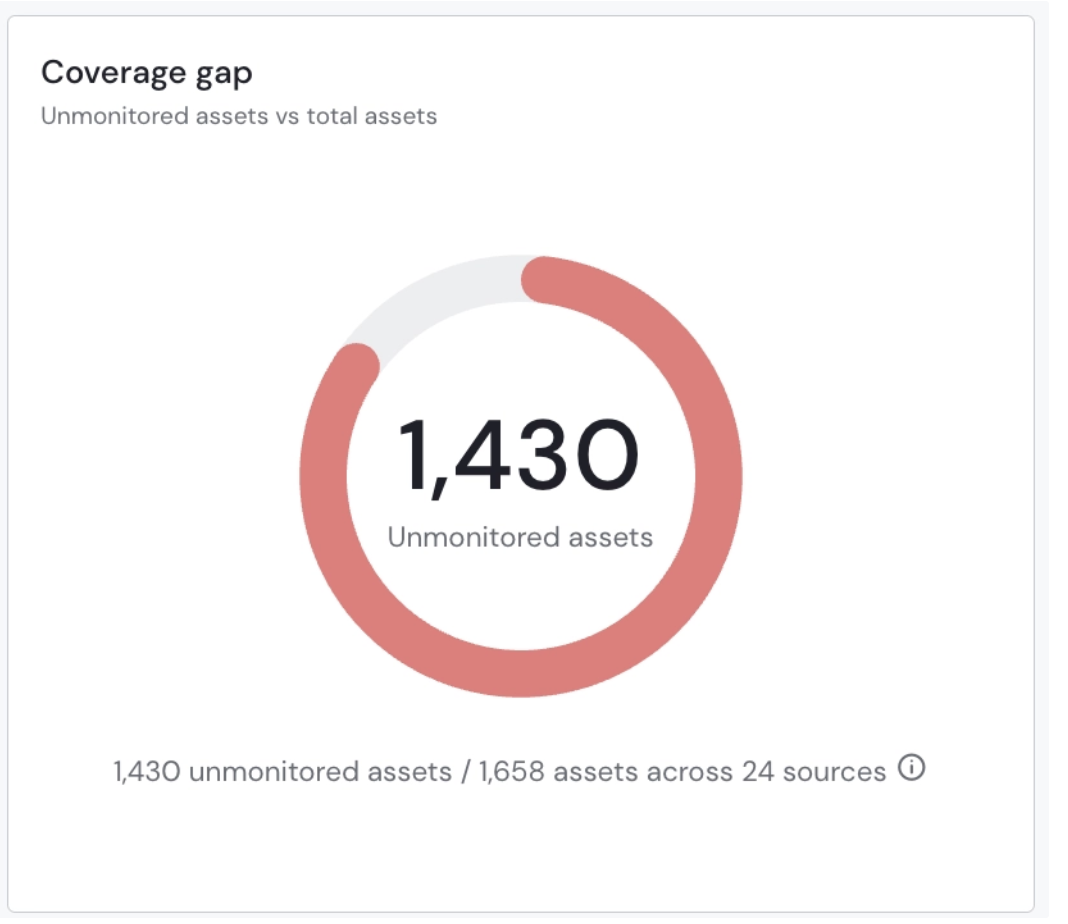
Coverage Gap shows how many assets still have no monitor, compared with your total assets.
How it helps
A percentage can be hard to turn into work. Coverage Gap shows how many assets still need a monitor, so you can see how big the job is. Use it with Source Coverage to see which sources to start with.
3. Incident Health
Incident Health shows incident volume, current workload, and how quickly incidents are acknowledged and resolved.
1. Incident Overview
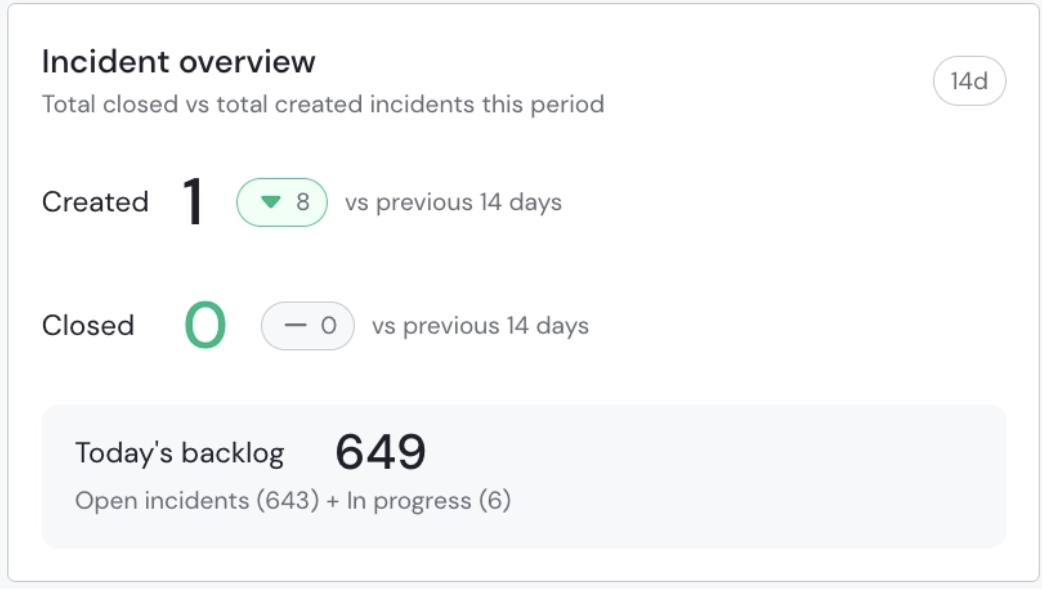
Incident Overview shows how many incidents were created and closed in the selected period, and how many are still waiting to be resolved today.
- Created: incidents opened during the period. The badge compares it with the previous period, so a red ▲ means more incidents than before.
- Closed: incidents closed during the period, with the same comparison.
- Today’s backlog: every incident that is still unresolved right now, open or in progress, whenever it was created. It is not affected by the time range.
Example: in the last 30 days, 40 incidents were created and 30 were closed, and today’s backlog is 120.
Incident Trend
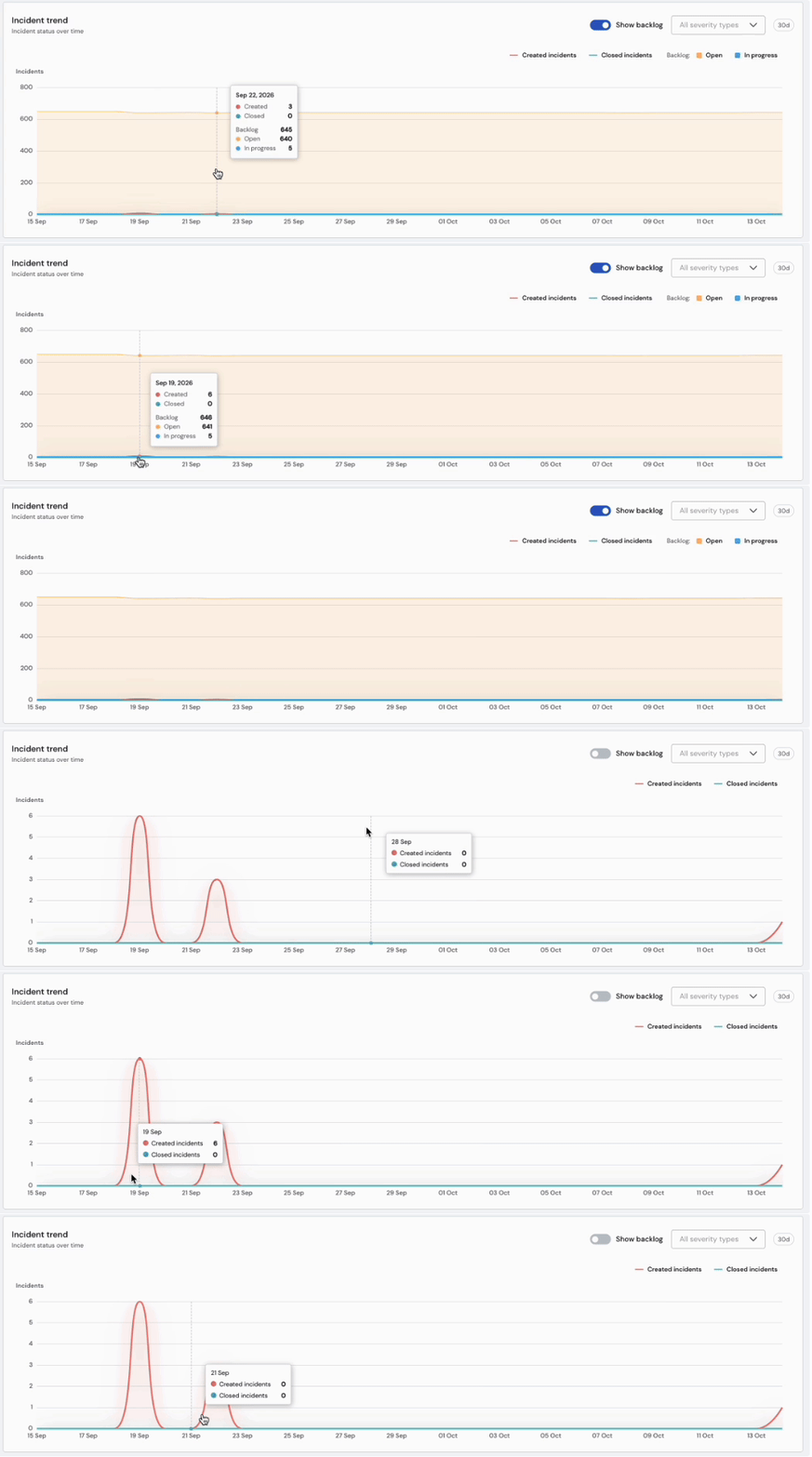
The chart shows incidents Created and Closed over time. Use the severity filter to focus on what matters most, such as High and Critical.
Turn on Show backlog to see how many incidents were Open and In progress each day.
Why the backlog matters
Created and Closed show how much happened in the period. The backlog shows whether incidents are actually being handled. Together they give you the full picture: you can close many incidents and still have a growing pile that no one is picking up.
How it helps
It shows whether incidents are piling up or being worked through, and whether the severity mix is shifting.
2. MTTR: Mean Time to Resolve
MTTR measures how long it takes to resolve an incident, from when it is created to when it is resolved on the selected period time. Use the switch at the top of the widget to see the Average or the Median.
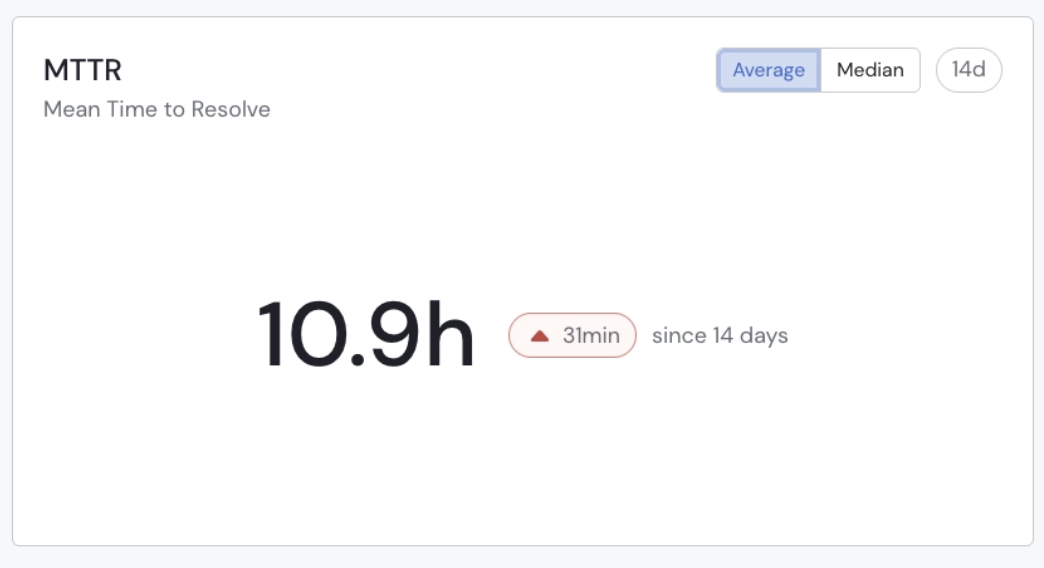
In the screenshot, the widget shows an average of 10.9h, and the red ▲ 31min means incidents took 31 minutes longer to resolve than in the previous 14 days. Red means slower. Green means faster.
How it is calculated
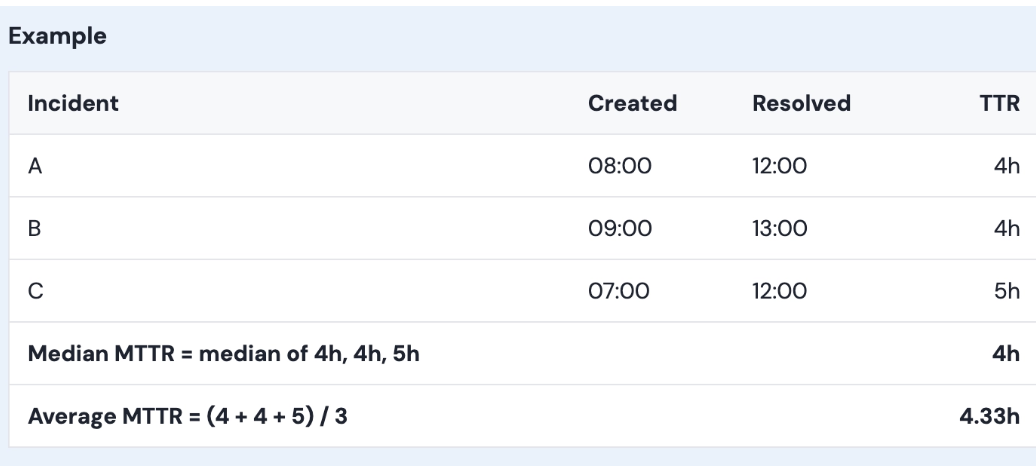
Why there are two numbers
Resolution time can be affected by weekends. An incident created on Friday evening may not be resolved until Monday, which adds around 60 hours even if your team fixed it as soon as they were back.
3.Time to Acknowledge
Time to Acknowledge measures how quickly your team responds to an incident, counted from the first failed incident.
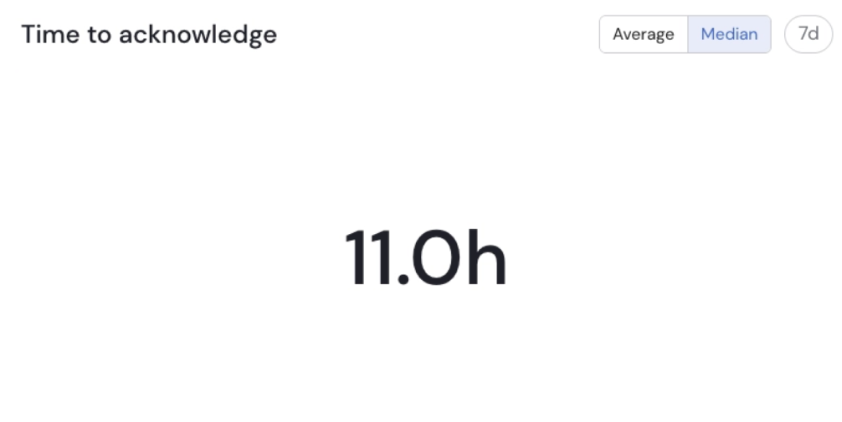
A human response includes:
- Assigning the incident
- Opening the incident
- Adding a comment
- Changing the status
How it is calculated
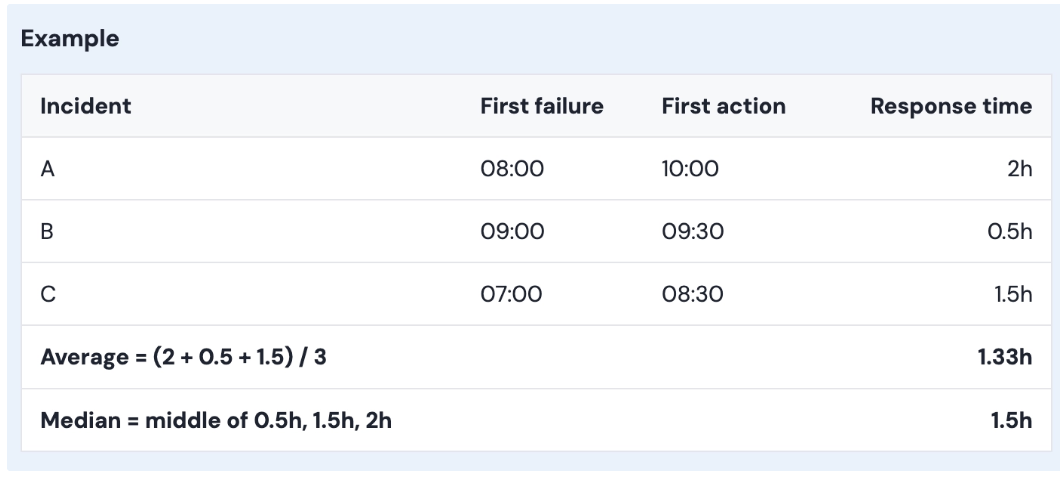
How it helps
This metric shows how quickly incidents are picked up. A rising response time may indicate that incidents are being missed or that the team is overloaded.
4. Incident Severity
Incident Severity shows the number of incidents of each severity type, day by day.
- Each bar is one day. Its height is the total number of incidents that day.
- The colors show the severity: Critical, High, Moderate and Low.

How it helps
A large number of incidents is not always urgent. This chart shows how many are serious, and whether the mix is moving towards Critical and High over time.
Updated about 1 hour ago