

🤫 Mute Monitors in Bulk
You can now mute multiple monitors at once, directly from the Monitors list. This makes it easy to stop incidents and notifications for a set of monitors without having to pause each one individually — useful during planned maintenance, known data issues, or noisy monitors you want to silence temporarily.
What's new
From the Monitors list screen, select one or more monitors and click Mute Notifications in the "..." menu. You'll be offered three options:
| Option | Effect |
|---|---|
| Mute until tomorrow | Mutes the selected monitors until 08:00 AM the next day (in the user timezone). |
| Mute for 2 days | Mutes the selected monitors for the next 48 hours. |
| Mute until next status improves | Mutes the monitor until its status improves (e.g. From "Failing" to "Passing", or from "Requires your attention" to either "Failing" or "Passing"). This was the historical behaviour for monitor muting. |
| Mute indefinitely | Mutes the selected monitors until manually resumed. |
| Unmute | Removes any previous Mute setting. |
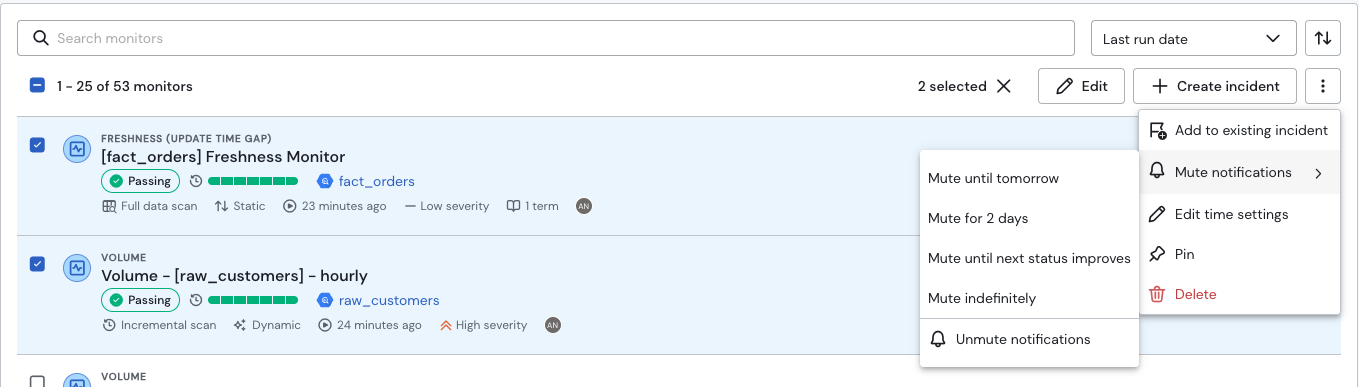
While mutes, the selected monitors will not run, and no new incidents or notifications will be generated for them.
How to use it
- Go to the Monitors list.
- Select the checkboxes next to the monitors you want to mute.
- Click Mute.
- Choose a mute duration.
Muted monitors are flagged in the Monitors list, and can be resumed at any time — individually or in bulk — before their mute period ends.
Why we built this
Muting monitors one at a time was slow and easy to forget, especially during maintenance windows affecting many tables or sources at once. Bulk muting lets you act on a whole set of monitors in a single action, reducing noise and avoiding unnecessary incident triage.